Thursday, December 7, 2017

City Symbols (Part 2): Simple Houses

As mentioned last time, I'm now working on creating city icons in the style of little city pictures, like these examples:
To start with I'm going to try to generate a simple house:
Basically an outline with doors and windows.  Typically one or two of these little house icons is used for a small city (e.g., Maltina or Pahamo in the map above), and often fill in the spaces in a big city (e.g., Monterey or Gafemnoro in the map above).  These simple houses also have many of the elements used to draw bigger buildings like towers, i.e., a roof, windows, doors and so on.  One of the challenges will be to make these drawings look good at map scale.  The example maps above are higher resolution than Dragons Abound maps, and those icons are already small.  For my maps, the small buildings will be around 6 pixels wide at the default resolution.

Of course, I don't want to generate the same house over and over, so one thing that's worth thinking about up-front is how the procedural generation will vary the house, and which parts are constant and which can change.  The key constant element here is probably the height of the house, or more accurately the height of one story of building.  I can vary the width of the house, the height of the roof and the placement of the doors and windows, but it doesn't make sense to have buildings with different scales:
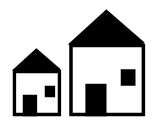
(Although I suppose if you had hobbits and giants living in the same city...)  I also want to limit the number of constants so that I can generate a nice variety of houses, but I also want the variable factors to stay reasonable.  One good way to do this is to generate the other variable factors based upon the constants, for example, by saying that the width of the house can vary from 1 to 2 times the height.  In this case, I'm going to try to base everything off the height.

The first step is to generate the basic outline, with some variation in the width of the house and the height of the roof:
At this point it occurs to me that it will probably be useful to separate the creation of the house from the drawing of the house.  My top-level code looks something like this:
function createSimpleHouse(world, mapParams, x, y, height) {
  const house = {}; 
  createHouseOutline(world, mapParams, house, x, y, height); 
  createHouseRoof(world, mapParams, house); 
  return house;    
};

function drawSimpleHouse(world, mapParams, svg, house) { 
  const allhouse = svg.append('g'); 
  drawHouseOutline(world, mapParams, allhouse, house); 
  drawHouseRoof(world, mapParams, allhouse, house); 
  return allhouse;
};
Creating houses with black roofs is now just a matter of making that an option in drawHouseRoof: 
Likewise, I need to fill the main part of the house, either to obscure the background or to make them a particular color, like the red icons in the example map above.
Now let's add doors and windows.  The door height and width are determined by the building height, and at least initially it can be anywhere along the front of the house, with a little buffer at either side.
And we need to be able to fill the doors in as well.
One interesting point about my example maps is that doors don't always appear on buildings (perhaps the door is on a different side).  So to accommodate that I'll put a random chance on a door appearing.
Now I need windows.  Windows can vary more than doors in terms of height and width, so I'll pick a size randomly and then fill in to either side of the door (if there is one).  The top of the window will be set to align with the top of the door.
And obviously I'll want the capability to fill in the windows as well.
One thing I learned in doing mountains is that scaling down doesn't always look good.  You need to generate graphics at the scale it will be used and tweak it to look good at that size.   So for the most part in this series of postings I'll be showing images at the tiny scale they'll be used.

So how does this look at map scale?
That's not too bad.  The details are clearly visible and it's easy to distinguish the different houses.

Saturday, December 2, 2017

City Symbols (Part 1): What I'm Trying to Do

I feel like I've been doing labeling forever, so I'm going to turn my attention to doing some more generative and artful -- generating city symbols.  So far, Dragons Abound uses simple circles to mark cities, with different sizes of circles to indicate general city size.  This map shows examples of the three sizes:
Most maps I see use circles or some other simple symbol to represent cities.  That's easy and looks good; so it has a lot to recommend it.  

A more artistic approach is to represent the cities with little drawings.  In many cases, these are simple icons representing different sizes of cities or other map elements:
In this example you can see the icons for a couple of different city/fort sizes, as well as a three dot figure representing something else.  Sometimes these can be quite lovely and really enhance the map.  I find the icons on this map quite nice:
Drawing cities this way borrows from medieval map traditions:
This map of Africa (from 1570) features small, hand-drawn icons for every city.

Some of my favorite city symbols are on this map of Western Torfani by Ilanthar on the Cartographer's Guild:
Each city is individually and carefully drawn, and colored to fit perfectly into the map's color scheme. I doubt Dragons Abound can do as well!

There's a straightforward pattern to these city symbols.  Small cities get small, simple illustrations with one or two buildings.  Larger cities get increasingly taller, more complex buildings as well as more buildings.  For the Skies of Fire map it isn't much more than something like this:
(Apologies for my poor mock-up skills!)  

I can certainly generate buildings similar to those in my mock-up above, but one of the most challenging aspects of generating city icons is that the scale is *tiny*.  On most maps, a small building is only about 5 pixels high.  Making icons that will look good at that scale is quite a challenge -- especially if you want to procedurally generate the icons and have a variety of distinguishable and interesting features.  (There's a reason pixel art is so challenging!)  Dragons Abound uses vector graphics, which can be perfectly scaled smaller or larger.  But as I learned with generating mountains, something that looks good and works well at a large scale doesn't necessarily look good at a smaller scale, even if the scaling is perfect.

Another challenge will be to generate icons that are artistic and look hand-drawn.  I could probably  easily generate a limited set of square, abstract icons similar to those in the first map above, but while those might be better than circles, I don't think they add a lot to the beauty and appeal of a map.  The second set of icons in the "Skies of Fire" map above are better -- they're representational and stylistic, but they don't offer a lot of challenge for procedural generation because the variations are so limited.  The Torfani icons are more what I'd like to achieve -- icons that are individually creative and artistically drawn.  Of course, very few fantasy maps have icons at this level -- I think creating artistic, appealing icons at this scale is a challenge even for human artists.  So it's a very high bar for procedural generation,  and I'm sure I won't produce icons at the Torfani level, but I hope to at least get in the neighborhood.

In the next posting, I'll tackle simple buildings.

Monday, November 27, 2017

Various Miscellany (Part 2)

Some current statistics (11/27/17):

    Source lines of code:  36271
    Dead/removed lines of code: 6559
    Number of configuration parameters: ~1700

The number of configuration variables is a bit misleading, since it includes specific configurations (e.g., to recreate a specific map style).  Still, there are a large number of parameters!


While generating maps on another topic, I noticed that I had some city labels colliding with the city icons, as in this example:
It may be a little hard to see because of the bounding boxes, but the city label "Homlunhan" is overlapping the icon for the city.  More importantly, you may be able to see that the bounding box for the text string (the purple box) is actually too short.

The key to this bug is that only the capital city with the large label has an incorrect bounding box. You can see that the smaller city "Kuhenpen" is fine.  As it turns out, there was a bug in the code that was causing the bounding box for capital cities to be computed with the font size of a smaller city, while the label itself was getting the correct size.  Once that was corrected, all was fine.


I returned recently to the problem of "holes" in the woods.  This happens when there is a large mass of woods and a bare spot in the middle, sometimes from mountains.  Polygons with holes inside of them are always problematic, and this situation created a lot of problems for Dragons Abound.  I had another long airplane flight and fixed most of these problems by carefully constructing the forest areas and letting SVG figure out the holes.  But there's one part I couldn't rely on SVG to calculate for me -- the "bumps" around the edge of the forest.  I create these myself by the process described here.  And it was sometimes the case with forest holes that the bumps faced the wrong way:


In this example, the bumps in the larger hole point inward instead of outward.

When I construct the outlines of the forest, I construct the path so that it runs clockwise. But that doesn't tell me which side of the path the forest is on, so the bumps sometimes go the wrong way. What I need to do is construct the path so that the forest is always on the left (or right) side as you go around the path clockwise (or counter-clockwise).  Then my bump can consistently go away from the forest mass.

But how do you tell if a point is on the left side or the right side of a line?
Is C on the left side or the right side of the line AB?  First of all, it depends on whether the line starts at A and ends at B, or starts at B and ends at A.  But let's say the line runs from A to B.  How do we know C is on the "left" side.

You might consider doing something like determining the angle between AC and AB, and seeing whether the angle is positive or negative:
But it turns out there's an easier solution.  You can use the cross product of the two vectors:

function isLeft(a, b, c) {
     return ((b.X - a.X)*(c.Y - a.Y) > (b.Y - a.Y)*(c.X - a.X));
};
This is positive when C is on one side of the line, and negative when it is on the other.  (Which is which depends upon your coordinate system.)

I can use this to make sure that I always construct the paths around the edges of my forest so that the forest is to the left of the path.  And then my bumps always go the right way:


When Dragons Abound creates a map, it randomly selects a font from a list of suitable fonts.  (The suitable fonts for a fantasy map are not the same as for a handwritten map.)  One persistent problem with this has been that the fonts seemed to display at different sizes.  Some fonts would be very big on the map while others would be tiny, even when I tried to display the at the same size.  Here are a variety of fonts displayed at "20px" size:
As you can see, there's a considerably difference in both height and width across the fonts.  My expectation when I set the size of the font to '20px' is that would result in the same height or the same width across the fonts.  (Because the aspect ratios are different between the fonts, the height and width can't both be the same.)  But in fact neither the height nor the width was the same.

This is pretty puzzling to me -- What does it mean to set the size of a font to "20 pixels" if that isn't the same across the different fonts?  I posted a question about this to Stackoverflow, and also to Reddit.  The answer is complicated but the TL;DR is that font sizes don't mean anything that's particularly useful.  They can be completely different from one font to the next.  This seems like madness to me, but there you go.  I've dealt with other maddening "features" in creating  Dragons Abound; I guess I'll deal with this.

My solution is to measure a sample text when I load up a font and then calculate a scaling factor to correct the font sizing.  By calculating a scaling factor for every font I use, I can make them appear to be relatively the same size.  I can't make both width and height the same.  Since the length of text is more important on the map than the height, I've chosen to make them all roughly the same length.

What should I use as a sample text?  Initially I used "ABCD...Zabcd...z".  But that's not really a good choice, because in English text, all the letters don't appear equally often.  For example, the letter 'E' appears about a hundred times more often than the letter 'Z'.  So if I want typical text to be close to the same length, I should care more about 'E' than about 'Z'.  To do that, I constructed a long text string that provides more copies of frequent letter than infrequent letters:
EEEEEEEEEEEEeeeeeeeeeeeeTTTTTTTTTtttttttttAAAAAAAAaaaaaaaa
OOOOOOOoooooooIIIIIIIiiiiiiiNNNNNNNnnnnnnnSSSSSSssssssRRRRRR
rrrrrrHHHHHHhhhhhhDDDDddddLLLLllllUUUuuuCCCcccMMMmmm
FFffYYyyWWwwGGggBbJjKkPpQqVvXxYyZz'
That may look a little silly, but it produces a better scaling factor than ABCD...  Here's the same font display with scaling to make the font height equal:
As expected, the sample text is still somewhat different lengths, but you can see that it is much closer now than without any scaling.  It's too bad CSS doesn't provide this capability, but this solution isn't too painful and gets close enough for my needs.

Saturday, November 18, 2017

Labeling the Coast (Part Six)

One thing you'll quickly notice looking at real maps of coastlines is that there are lots of "points":
This is a random spot on the New River in North Carolina, and it has 5 "points" within a radius of about a half mile.  I suspect so many points get named because they serve as such useful landmarks when sailing close to shore -- "Sail out around Harvey Point, down the coast to Wilkins Bluff, and then across the river downstream of Poverty Point."  At any rate, it seems like a good idea to give the map generator the ability to identify and name points.  In fact, Dragons Abound already names some points -- the ones that have been turned into island chains.  But I'd like to detect and name other points as well.

A point is basically a bay turned inside out.  Where a bay goes inward and is filled with water, the point goes outward and is filled with land.  So the code for detecting and labeling bays can be very easily adapted for points.  The only significant difference is that I wanted bays to be blobby, while I want points to be ... well, pointy.  So I have to use slightly different metrics to find pointy shapes rather than blobby shapes.  The metric I'll use is basically the ratio of the length of the point to the width of the point -- the higher that number, the more pointy the candidate.

As an initial cut, I set up the code to detect points without worrying how pointy they are:
Here the detected point coastline is outlined in green with a red dot at one end, a purple dot at the other end and a green dot in the "visual center" of the point.  Three "points" have been detected:  The north and south ends of Zercher Island, and the land sticking out above the city of Peignear.  These are all technically points -- sticking out and full of land, so the basic functionality seems to be working.  The northern point on Zercher Island is too big, I think, and none of these may be "pointy" enough.  I can address these problems by adjusting the cutoffs for length and pointiness.

This demonstrates another problem:
I want to allow points on islands.  For example, the bottom half of Zercher Island above might be a reasonable feature to label as a point.  But it doesn't make any sense to identify half of an island as a point.  To address this, I'll require that a point not take up more than (say) 1/4 of its coastline, and adjust that as necessary.

Here's an example of a point identified by the tweaked algorithm:
This point has a ratio of length to width of about 3.  The width is measured between the red and purple dots.  This might be a problem for points like this one that are significantly wider elsewhere on the point.  But this at least is acceptable for now.

Now I need to put a label on the point.  There aren't a lot of examples of labeled points on my reference maps.  Real maps tend to label across the point (as in the Google Map above) or hanging off the end of the point as in this map of Long Island:
It's probably easiest to implement a label across the point, so I'll do that first.  This can be done by creating an area label for the point area and anchoring the label strongly to the visual center of the area. That gives me something like this:
Or in the multi-line version:
Hanging the label off the end of the point requires a little ingenuity.  The trick is to treat the label as a point label for a spot right on the end of the point -- which I'll assume is the midpoint of the path around the point.  Because the label placement tries to avoid crossing the coasts, it will usually end up in the water:
And the multi-line version:
And that's about all that was required to add points.

Although there's more to do with labeling (mountain ranges!) I've gotten a little tired of labeling at this point, so in the next series of posts I'm going to move on to a different topic for a while.

Sunday, November 12, 2017

Labeling the Coast (Part Five)

In the previous posting on labeling islands, I implemented multi-line labels, as shown for example on this map:
Now that I have multi-line labels working, I wanted to return to labeling the coastline and see about labeling bays.

Bays are recessed portions of the coastline joined to a larger sea, as in these examples:
So how can I detect a bay on my map?

I've talked a couple of times on this blog about the notion of sinuosity -- which is the ratio of the length of a curve to the straight-line distance between the end-points of the curve.  For a straight line, this number is 1.  For a half-circle, this number is the length of a half circle (Pi*D/2) over the diameter of the half-circle (D), or about 1.5:
So I can detect "bays" on the map by walking along the shoreline and testing the sinuosity.  Values close to 1.5 should indicate a bay.

Here's an initial attempt to detect bays.  The red dot is the start of the bay on the coastline and the purple dot is the end of the bay. 
Let me outline the bay to make the area clearer:
That's kind of odd -- the bay skips part of the coastline.  It turns out I was identifying bays too early in the world construction process -- the coastline was still changing after bays had been identified. So I can move bay identification later in the world construction and tweak the size a bit:
Okay, that looks pretty reasonable.  It's definitely a bay.  But looking at this bay raises some questions about how big the bay should be.   On this map, the "bay" could reasonably stretch from near El Od to the point across, or even further to (say) a point near the Kupik Islands label.  For example, here's the bay the algorithm finds if I set the length of the bay much longer:
That also looks reasonable.  I think I want to search a number of possible bay lengths and keep the best one (whatever that is).  Offhand, I can't think of any way to do this efficiently, so I'll implement a straightforward brute force search and keep the candidate with the highest sinuosity.  That yields this solution on this map:
This seems like a pretty reasonable choice.  I might personally include more of the opening to the north in the "bay" but this choice (essentially marking the opening of the bay at the narrowest point) certainly seems good enough for an initial cut.

Now let's see about adding a label to the bay.  I'm going to use a multi-line area label, meaning that the algorithm will try to place the label somewhere within the area of the bay.  As an initial spot and anchor for the label, I'll generate the visual center of the bay, shown here as the green dot above the Inzek label:
Now I need to make up a name, create a label and let the algorithm at it:
Okay, at least the label is showing up.  But it is weirdly placed with respect to the anchor point.  Let's look at the diagnostics.
Hmm.  It looks like the corner is being pulled towards the anchor point.  Ah, I've got a mistake in the code that is treating area labels like point labels (which try to get a corner near the anchor point). That's easily repaired:
And with the debug off and the size tweaked a bit:
For some reason I've been focused on using multi-line labels for bays, but single line labels are also an option:
I should note that right now area labels can only be horizontal.  For bay labels, it might make some sense to allow the labels to sit an angle or have some arc (take a look back at the example maps at the beginning of this post).

Here's a map with multiple bays:
That seems fine to me.

Here's a problem that popped up while testing:
Here "Dummo" meets the definition of a bay and has a pretty high sinuosity, but doesn't seem to be quite the sort of thing I'm trying to identify.  It's more like a fjord or an inlet.  That might be useful at some point, if I have a need to identify "inlets".  But for now I'm working on bays.

How can I distinguish between "bays" and "inlets"?  The key difference is that the bay encloses more water -- in fact, I suspect that I can do a better job detecting bays by looking for stretches of shoreline that enclose a lot of water rather than shorelines that are sinuous.  One subtlety is that I want to try to maximize the amount of water enclosed per the length of shoreline.  Otherwise I'm going to be biased towards picking the bays with the longest shorelines over those that are the most "bay shaped".  So I need to use a combination of the area, the length of the bay shoreline, and sinuosity to identify "bay shaped" areas.

This approach works better:
Here it does a good job of identifying two bays.  Note that the algorithm has placed "Bipdem Harbor" rather nicely.  That bay could be extended along both shorelines a considerable distance, but the spot the algorithm has chosen provides a more definitive boundary that seems to mark off a separate body of water.  The stretch of coastline from from "skug Kal" north has bay characteristics but doesn't quite look to be separate enough, and the algorithm correctly passes it over.  (Obviously some of this is personal preference, and I could tweak the algorithm to pick out a bay here if I liked that.)

By the way, in the real world, plenty of features get labeled as bays that I think look problematic, e.g., from Google Maps:
But I want my fantasy maps to be "better than real life".

Here's an interesting problem that cropped up:
Two bays facing each other.  I think people would be inclined to call that whole area a single bay.  Pretty unusual, but I don't think it's worth trying to prevent.