Monday, March 26, 2018

Recreating a Map Style: Skies of Fire

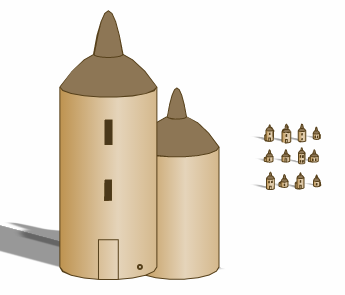
As part of a series of posts on creating and using city icons, I've recreated the icon style used on the Skies of Fire map:
This map can be seen in its entirety here.  In the next part of the posts on city icons, I'll be placing these style icons on a map, so I thought I'd recreate the Skies of Fire style map in Dragons Abound.

To start, this excerpt shows the base colors for sea and land:
Interestingly, the sea is actually tinted slightly red.  Although there's a grunge texture laid on top of the map, there's no other mottling of the land or the sea, any 3D effects, or any pattern in the sea, so I'll turn those features off.   I can somewhat recreate the grunge texture with a grain filter, although I'm not going to spend too much time on tweaking that.  Normally there is also a forest color, but on this map there are no forests shown.  I don't know whether that's because there are no forests or they're just not shown, but at any rate I will turn off forests in this style.  The pattern of ocean lines is similar to one of my ocean decorations.  Setting these things gets me to here (reference map on top; my map below):
There are a few differences.  The coastline on my map is much thicker, and the ocean lines in my map are based on the ocean color, where they're based on the coastline color on the reference map.  Adjusting the width of the coastline is trivial, but it doesn't look like I have any option to manually set the color of the ocean decoration lines.  Adding that isn't too hard, although interestingly enough I find an error that's been lurking in that code for some time.  Fixing those things gets me to this:

Which is close enough for the basic colors and the ocean scheme.

There aren't many rivers on the reference map, but as it happens their style (black lines with water color in-between) matches the default river style for my maps.  That leaves mountains:
The mountains on the reference map are fairly broad, have rounded peaks and contour hatching in black for shading.  The unshaded parts of the mountains are the background color and don't have snow indicated.  Ridge lines (from the peak along the shadow line) are not drawn, just indicated by the shadow line.  The mountain icons themselves are fairly small in relationship to other map elements.  These can all be set by parameter in Dragons Abound to give this (Dragons Abound mountains on the right side):
Dragons Abound doesn't mark peaks as was done with "Alvent" here but otherwise it's not a bad match.

The Skies of Fire map marks country borders with a color around the country border.  Dragons Abound has a similar option.  There's not much to be done here other than to turn on that option:
There's quite a bit of labeling on the reference map.  I'm not entirely sure what font is being used:
It's probably IM French Canon, although the version used on the Skies of Fire map seems to have some internal glyph details that my version lacks.  Small caps is used for all labels except cities and rivers.  Ocean and coastal labels are in a dark rust color.  The larger labels have black outlines filled with brown, and the capital cities are underlined.  Underlining is the only element here I haven't done before.  It's added using the CSS (or SVG) “text-decoration" style.  Here's what those styles look like in Dragons Abound:
I don't much like the way the underlining looks; it's too heavy and clunky.  However, there doesn't seem to be a lot of control over this in CSS/SVG, and I'm not interested enough to implement my own underlining.  The reference map also stretches out region labels and turns them to fit their regions.  This is something I haven't yet implemented in Dragons Abound.

That's about it for capturing this map style.  Here's the side-by-side comparison:
Reference map to the right; Dragons Abound to the left.  One of the most obvious differences is the red city icons in the reference map, so let me add those in.  I implemented them fairly early in my series on city icons:
Dragons Abound version on the left; original on the right.

Here is a full-size map in the Skies of Fire style (click through to see full size):
To my eye, the icons are a little too intrusive on this map; that might be because of the regional scale of this map.

You might want to compare this to the map at the end of this posting.

Thursday, March 22, 2018

City Symbols (Part 17): Some New Icon Styles

Having recreated some of the icon styles from my reference maps, I'll now work on creating some new styles.

One thing I'd like to try is to create a silhouette style, something like these skylines:
There a couple of ways to do this.  One way is to generate a city icon as normal, and then go through and change the fill and line colors for all the components to black.  Another way is to take the union of all the elements in the icon to create an outline, and then fill that outline.  (And in fact, I already have some of this implemented for the Skies of Fire style icons so that I could put a heavy outline on those icons.)

Of these two choices, it turns out that the second is a little problematic.  One reason is that there are many pieces to the icons:  building fronts, building sides, roofs, roof sides, roof backs, building attachments, flags, bridges, and so on.  Iterating through all of them is non-trivial.  The second reason is that -- in general -- taking the union of two polygons doesn't result in a single polygon.  For example, the polygon representing a flag is connected to the rest of the city by a line.  Since a line doesn't have any width, the union of the flag with the rest of the city results in two polygons -- the city and a separate flag.  Not only would that look a little odd, but I've been trying to avoid having multiple polygon unions, because it makes the code to deal with them complicated.

I might eventually have to deal with unions the “right way" and allow multiple polygons, but in this case I've got an easier alternate solution, so I'll use that.
There are a couple of problems with these silhouettes.  The first is that silhouettes look better with some separation between buildings so that the silhouette isn't just an undifferentated blob.  So let me add more distance between the buildings.
A little better, but icons where the buildings are completely separated like Shimmiid look wrong.  I can fix that by putting a short wall along the base of the icon to connect up all the buildings.  I'll also shrink down the icons:
Which I think looks pretty good.  Of course, I need to be able to color the silhouettes by the territory color.
This looks okay, but it's hard to distinguish some of the colors without making them jarringly bright.  An interesting variant is to add an outline to the icon:
This makes the icons a little more distinct on the map.  I tried reversing the colors as well:
But that doesn't seem very effective to my eye.

Another thing I'd like to try is to make the height of the icon follow a particular shape rather than be determined randomly by the height of the buildings.   And in particular to have a sort of semi-circular icon.
Pardon the poor quality of the illustration, but you get the idea.

To do this, I essentially need a function that determines the height of a building based upon it's position in the icon.  I'd also like to have a little more precision than just 1, 2 and 3 story buildings.  So I'll vary the height of the building as well as the number of stories, so I can get a range of total building height.
For large cities this often works fairly well, although the special fantasy builds can throw it off.

Now that I've written the code to vary the floor height as well as the number of floors, I can add an option for icons to keep adjacent buildings from being the same height.

Sunday, March 18, 2018

City Symbols (Part 16): Custom Icons and External SVG

Another feature I want to support is the ability to use custom icons, e.g., as drawn by a human artist. Here's an example using some simple icons I created in Inkscape:
This works much the same way as the custom texture patterns for the ocean and land.  The custom icons are put into an HTML <img> tag to force the browser to load the image and then an SVG <image> is created which references the same url.  This SVG <image> is then put onto the map.

The advantage of this approach is that it works for any image format the browser supports.  However, there are also several disadvantages.  If I use any pixel-based image format (such as JPEG or PNG) then the image will degrade as the map is zoomed.  On the other hand, if I use a vector-based image format (such as SVG) then zoom will work fine, but I have no access to the actual SVG of the image.  Why is that important?  Well, in a case like the city icons, it would be nice if I could (for example) go into the SVG of the capital city icon and re-color the star so to match the territory color.  (So Shimpes above would have have a green star, for example.)

To do this requires solving a couple of problems.  First, I need a way to load an external SVG file so that I have access to the DOM when the SVG is inserted into the page.  Second, I then need to be able to walk through the DOM and adjust colors (etc.) to fit the map.

As far as loading the external SVG goes, d3 provides a function d3.xml that will help.  XML -- the eXtensible Markup Language -- is a language for creating data files that are easily machine-readable, and SVG is written in XML.  So d3.xml can be used to read and parse SVG files, and actually returns a document fragment that is suitable for injecting into a web page.

Of course, there are a few wrinkles to getting this working.  One is that I currently run Dragons Abound as a standalone Javascript application directly from the file system.  (It loads in the browser as a file:/// URL.)   It turns out that using XMLHttpRequest from a file URL is a little problematic.  There's something in modern browsers called the same-origin policy.   The same-origin policy is intended to keep Javascript from one web page executing Javascript from another web page, since this could be used to do things like steal your PIN number out of your banking web page.  However, same-origin policy is only well-defined for protocols like HTTP and HTTPS.  And in particular, it has never been defined for file URLs.  As a result, browsers can do whatever they want with these URLs.  And they do!  It turns out that Chrome simply forbids any file URL to load any other file URL.  (Whether this is reasonable is a separate debate.)

There are couple of ways to work around this.  The first would be to switch Dragons Abound to run off an HTTP URL.  Technically, this is the best solution.  It would make accessing external resources simple.  The drawback is that it would require me to run a web server on my development machine.  That's not a huge problem -- there are plenty of small, lightweight web servers I could use -- but it's a little bit annoying to have to bring up a web server when I want to work on the program.

Another solution is to start Chrome with the "--allow-file-access-from-files" switch.  This switch is described as "By default, file:// URIs cannot read other file:// URIs. This is an override for developers who need the old behavior for testing."  In other words, exactly what I'm doing.  So that's my solution, at least for now.

Another wrinkle has to do with the contents of the SVG files.  If you open up an SVG file created by something like Inkscape, you find that it's actually a complete SVG:

<svg [...] sodipodi:docname="icon00.svg">
    <defs  id="defs2" />
    <sodipodi:namedview
     units="px" />
    <metadata
     id="metadata5">
        <rdf:RDF>
            <cc:Work
         rdf:about="">
                <dc:format>image/svg+xml</dc:format>
                <dc:type
           rdf:resource="http://purl.org/dc/dcmitype/StillImage" />
                <dc:title></dc:title>
            </cc:Work>
        </rdf:RDF>
    </metadata>
    <g
     inkscape:label="Layer 1"
     inkscape:groupmode="layer"
     id="layer1"
     transform="translate(0.64906156,-291.10098)">
        <circle
       style="opacity:1;fill:none;"
       id="path4506"
       cx="2.6249902"
       cy="294.37503"
       r="2.4633491" />
        <path
       style="opacity:1;fill:#000000;"
       id="path833"
       d="m 4.9755297,296.6547 [...]" />
    </g>
</svg>

All I really care about in here is that <g> element about halfway down, or maybe only the elements inside that group.  So I could just pull those out.  But I might also need something in the <defs> element, and there are other complications -- this is actually a very simple example.

Happily, it turns out that SVG has no problem including another SVG.  This whole element can just be pulled out and dropped into the map SVG and everything works exactly as we'd like it to.  So I just have to pull the SVG element out of the document fragment returned by d3.xml:

let svgNode = documentFragment.getElementsByTagName("svg")[0];

And then I'm good to go.  Well, almost.  XMLHttpRequest is actually asynchronous, which means I have to kick it off and let it go do the business of loading the external file, and take care not to use it until that has finished.  (Dragons Abound takes long enough to generate the world that this isn't a problem.)   This Stackoverflow answer outlines the basic method for using d3.xml and a callback to read an SVG file, and Mike Bostock (the d3 author) provides a working example here.

Now that I have the SVG file loaded so that I have access to it's structure, I want to customize the icon.  In this case, I want to recolor parts of the icon to match the color of the surrounding territory. Recoloring an SVG element is easy -- I just need to set the 'fill' style to the new color.  The trick here is figuring out which elements within the file I just loaded I should recolor.  I need some way to "mark" elements for recoloring when I create them in Inkscape (or some other way).

One straightforward way to do this is to add an XML attribute to the objects to be recolored, for example, adding a 'recolor' element.  SVG files are text files, so you could do this by opening the icons up in a text editor and manually adding the attribute.  But Inkscape also has an XML Editor that lets you directly edit the XML representation of any object, so it's also easy to add a custom element that way.  Then you can recolor all the marked elements in one fell swoop with something like this:

city.icon.selectAll("[recolor]").style('fill', Color.makeColor(atc));


(Assuming you're using D3 and you've marked elements with a "recolor" attribute.)  Throwing all that in the program gives this:
And voila! the inside of the star icons have been recolored to match the territory color.

This is of limited use for city icons, but the same approach can fix a problem I've had with land and sea patterns.  When these patterns are treated as images, they cannot be recolored.  So to make the patterns work with any color of sea or land, I've made them a partially transparent gray color.  This has the effect of darkening the underlying color, as can be seen in the land hatching in these examples:
But as you can see, this not only darkens the color (changes the luminance) but it also changes the shade of the color (changes the hue) making it grayer.  Recoloring the pattern with a color made from the base color of the land fixes this.
In the example on the right, the land hatching is no longer gray but a darker land color.  It also makes it possible to change the darkness or color programatically.  (Rather than having to create a new pattern image file.)  I'm not sure why I'd want to do that, but I guess it's now an option...

Friday, March 9, 2018

City Symbols (Part 15): Culture Identifiers

I took a nice long break from Dragons Abound during the Christmas holiday, but now I'm back to continue to work on city symbols.  One feature I've wanted to have with my city symbols is to tie them to the city's culture, so that all the city symbols for a particular territory (culture) would have similar features distinct from other cities.

Typically territories are distinguished on maps by colors, and Dragons Abound has options for using colors to display territories or to mark borders, as in this example:
So one obvious feature I can add is to have any city flags be the color of the city's territory.  That's a little bit more complicated than you might expect, but after some refactoring:
Here you can see that Shimpes is flying flags that match its border color.

The flags are a pretty subtle indicator.  In general, I'd like to be able to style the city icons in more obvious ways based upon the territory in which they fall.  By changing building selection, colors, etc., I can make more distinct icons.  So I need to extend the code that varies the flag colors based on territory to vary any generation parameter.

Once that's done, I can pick different colors, roof styles, etc., and generate city icons for different territories that are visually quite distinct:
Eventually, I might tie the city icons to features of the territory's culture.  For example, if a territory is populated by dwarves, then the city icons can be gray to indicate the cities are built with stone.  Another possibility is to use city icons to indicate the merging or splitting of cultures.  For example, if a Culture A conquers Culture B, that could be indicated by making the icons for the conquered cities be a mix of the icons from Culture A and the icons from Culture B.

As is often the case as I work on developing Dragons Abound, I wrote a couple of different versions of icon generation (in the style of Skies of Fire and then Torfani), and then wrote the above code to modify the icon generation based on territories.  At this point, I understood enough to abstract the icon generation into a generic version that can be driven by parameters (instead of having different generators for different styles).  This gives me flexibility to experiment with different styles without having to touch the actual code.  It also means that when I add a new feature (say territory colors) it becomes available for all the icon styles.

For example, here's the Skies of Fire icon style as created by the generic generator, modified to use the territory colors for the building colors (instead of all red as in the original map):
Note that in this version of the map, it's much easier to tell whether Miet belongs to Kiil or to the territory above it.

Tuesday, February 27, 2018

City Symbols (Part 14): Recreating the Torfani Icons

(You might notice that Part 13 is missing.  That's not superstition.  It was a posting on some more fantasy elements that didn't work out, and turned out to be too short to be worth posting.)

Now that I have all (or at least most) of the elements in place, I'm going to work on recreating the icons from the Torfani map.  (Very similar icons are used on the Domhantyr Orientalis map.) To refresh your memory, this is a portion of that map:

There are roughly three different city sizes on this map.  The smallest icons look like this:
There's a fair amount of variation but typically the icon has one to three single or two story buildings.  Buildings can be round or square (but more often square) and are shown in (faux) 3D, although sometimes the sides of buildings and roofs are not shaded.  There are no decorations except an occasional “shed" peeking out from behind a house. Roofs are generally “peaked" for square buildings (with an occasional battlement) and domed for round buildings.  Some buildings lack doors, but all have windows.  Roofs and buildings are both the same color as the land, and doors are not filled in.  The building outlines are drawn in a dark brown color.

Putting all that together produces this:
Which (given the constraints) looks like a pretty good reproduction to my eye.  The shading is probably a bit too dark, so I'll tone that down.

The next size city looks like this:
In most ways, these are the same as the small icons.  They typically have 4-5 buildings and some buildings are now entirely behind the front buildings. Sometimes neighboring buildings are the same height.  Also, there are also no obvious sheds on these buildings.  Some of the towers seem to be taller than the other buildings.  Interestingly, the side shading seem to have completely gone missing in these icons.  I could reproduce that, but I'd rather keep it in.

Putting all that together produces this:
This brings us to the large cities, the most complex icons on the Torfani map.
The large city icons introduce a bunch of new features (many of which I implemented in the past few posts).  Most of the large city icons have tall towers, and often these are “fantasy" towers with some kind of strange architecture.  For the first time, buildings can be three stories (or higher) and some of these tall buildings have pennants.  There are typically about seven buildings in a large city icon, and sometimes there's one building substantially larger than the rest.  The buildings are more shaded than in the smaller cities, and many roofs are now colored.  The city is surrounded by a city wall, often with slanted sides and usually with a door or gate in the front center.

Some features I haven't implemented:  There are some “cast shadow" effects where entire buildings or parts of the city wall are in shadow.  Cities on rivers are split across the river, or are shown with a bridge over the river.

I'll start with the medium city icon and up the number of buildings.  I'll also allow three story buildings, which are tall enough to trigger the pennant code.
At this size and with this many buildings, it becomes obvious (looking at the baseline of the icon) that Dragons Abound doesn't handle overlapping correctly, particularly with round buildings.  Since I'm faking the 3D aspects of these buildings and not actually modeling them in 3D, it's pretty hard to get this right.  But in this case the bottoms of the building will be covered by the city wall and it should be less obvious.

Speaking of the wall, let's add it.
The distribution of building heights in the Dragons Abound looks wrong.  I'm randomly selecting buildings between 1 and 3 stories high, but in the real icons there are fewer tall buildings, and they're rarely next to each other.  Another problem is that while the Torfani buildings have some faux-3D shading, in the biggest icons the buildings don't show any side depth.  I'm not sure I want to entirely eliminate the side depth but I can certainly dial it back.  Here's a first attempt at that:
Upon examination, almost all of the tall buildings in the Torfani icons are round and narrow (e.g., towers).  They mostly have eaved or domed roofs, but I'll throw in the occasional onion roof.
Now I want to start to add in some of the "fantasy" elements.  The first element is to sometimes have a cupola on a big domed building.
Next I can add in the "fantasy" towers like in the leftmost Torfani examples:
Finally, I can add the towers with skybridges between them:
I can also throw in "pyramid" towers where each successive floor becomes smaller:
That more-or-less completes the large city icons, so let's see how this all looks on a map:
That's not too bad.  The long blank city wall in the Suit icon looks a bit jarring, though.  I can address this a bit by encouraging more inflection lines and coloring in the door.
Better perhaps, but I'd still like to figure out a better way to do some more painterly effects in SVG.

Meanwhile, here's another problem:
The icon for Shimpes is “in" the lake.  This occurs because the icon largely ignores whether it overlaps with features.  In general, since the icons represent something “sticks up" from the map, it's okay for it to overlap another feature behind it.  However, we'd like to avoid have the baseline of the icon right in another feature like a lake.  I can accomplish this by adding another criteria to the label placement algorithm that tries to avoid overlapping the baseline of the icon with a feature:
This also helps city icons in mountains and along the coastline find better positions.

Here's a side-by-side comparison of the Western Torfani map and the current Dragons Abound replication:

Tuesday, February 20, 2018

City Symbols (Part 12): Fantasy Elements

One element that distinguishes the large city icons on the Torfani map is that the icons contains some fantastical-looking buildings -- mostly fanciful towers:
And since I am doing fantasy maps, I'd like to include some fantasy elements in my icons as well.

I'll start with fantasy towers like the ones above.  These are basically skinny windowless towers with some "donuts" around them.  I already have a mechanism for creating towers with different sized floors that I used for creating towers that get narrower, and I can reuse that to create these sorts of towers by making some of the floors bigger:
We'll see how those look in icons, but for the moment I think that's good enough.

Another fantasy element I want to add is onion dome roofs.  Although to be fair, this isn't really a fantasy feature, since these roofs are common on Russian churches:

The S shape of the side of an onion dome requires that I implement a cubic Bezier curve, but since I have a quadratic Bezier curve implemented already and the equations aren't that different, that isn't too difficult.  Calculating the proper control points is actually the more difficult job, but with some experimentation I get something that looks okay:
Note that this "curve" is actually 9 line segments.  SVG natively supports Bezier curves and can draw this beautifully, but for my purposes it's best to have it as line segments.  I can make this as smooth as necessary by generating more line segments, but at map scale 9 will be more than sufficient.

Using this as a profile for a roof yields this:
What else?  This excerpt from a fantasy cities wallpaper suggests some ideas:
Cupolas and skybridges between buildings.

Let me tackle cupolas first. As in the picture above, these are often round, domed structures on domed roofs.  In fact, it's often a miniature version of the building it sits upon, which suggests I can recreate this by stacking a smaller building on top of a larger building, as I did to create the fantasy towers above.  
Although cupolas typically do have windows (they often serve to let light into the area below the dome) I've turned them off here; it's simply too much detail for such a tiny icon.  (I'm also not allowing cupolas on cupolas, I'm not crazy!)  Cupolas don't look very good on one story buildings, so I should probably turn them off there, too.

It turns out that cupolas look good for some other roof types as well, such as pagoda roofs:
Doing cupolas correctly in faux-3D is a little more challenging.  The cupola needs to line up correctly with the house roof on both the front and the side, which requires some calculation.  But once that's done, it pretty much works automatically for all the different roof styles.
A natural extension of this idea is to have just a second roof on top of roof.  This may sound odd, but it's not entirely uncommon:
That's basically a stack of different roof types.  Or in a pagoda:
This is actually a bit more complicated to implement than cupolas.  An initial thought is to stack roofs by essentially making a cupola with a zero stories or a single story of zero height, but either of those solutions will break a fair bit of code that assumes houses have to have at least one reasonable story.  So instead I'll have to allow a building to have multiple roofs.  A second problem is the the current roof code expects a roof to sit on a house; that will have to change to allow a roof to sit on a roof.

Peaked roofs are fairly straightforward, so I'll implement them first to see how it looks:

That's not too bad.  This initial attempt isn't too visible at map scale, but I think it has enough potential to do the other roof styles.  Next up is pagoda roofs:
Hmm.  There seems to be a problem, but I can't quite put my finger on it.  :-)  The problem here is that the "dip" in the side of the roof is big enough that the sides of the roof get inverted.  With that fixed and some adjustments I have this:
Somewhat visible at map scale; this might benefit from having (say) three roofs.  Here's what it looks like in 2D:
The last roof type are eaved roofs that come to a single point.  (That name doesn't make a lot of sense, I know.)  On round buildings these look like this:
And on square buildings:
That looks somewhat absurd in the full-size drawing, but much better at icon size.  This roof has a different appeal if there's no overhang on the extra roof:
Domed roofs get you variants of this:
Not particularly interesting and possibly NSFW.  And finally, onion roofs:
That looks interesting at the icon scale.  Of course, none of these doubled roofs look particularly "realistic" but the point of these elements is to give a fantasy feel to the map, so that isn't really a drawback.

Now let me work on skybridges.  The first step is to draw two identical towers.  A tower (as I covered in a previous post) is just a tall skinny building.  To get two identical towers, I create a first tower and then copy it and draw it offset to the first tower: 
(In general the problem of making a deep copy of a Javascript object is complex and fraught with danger, but for this particular application I can get away with a solution crafted just for copying these buildings.)  The next step is to add the skybridge between the two buildings. 

As a first step, let me insert a one-story building to fit in-between the two towers:
I've made these round buildings, and they obviously don't look anything like a bridge.  Now I'm going to take advantage of how round buildings are drawn by using a negative offset for the bottom of the building.
Obviously the roof of these "buildings" are broken, but the bottom looks like we'd expect for a skybridge.  So I need to turn the roof off and hoist the building up the tower:
There are a couple of problems with these bridges.  The worst is probably that the shading in faux-3D is wrong.  Since these are really "round" houses, they get shaded accordingly.  Since they're actually flat, they should be a solid shade rather than a right-to-left gradient.  That isn't too bad a problem, so I'm inclined to just leave it "as is" rather than add some more special cases to the code.